
|
Teachers asked — and now it’s here. Boxlight Partner Resource — May 2026 |
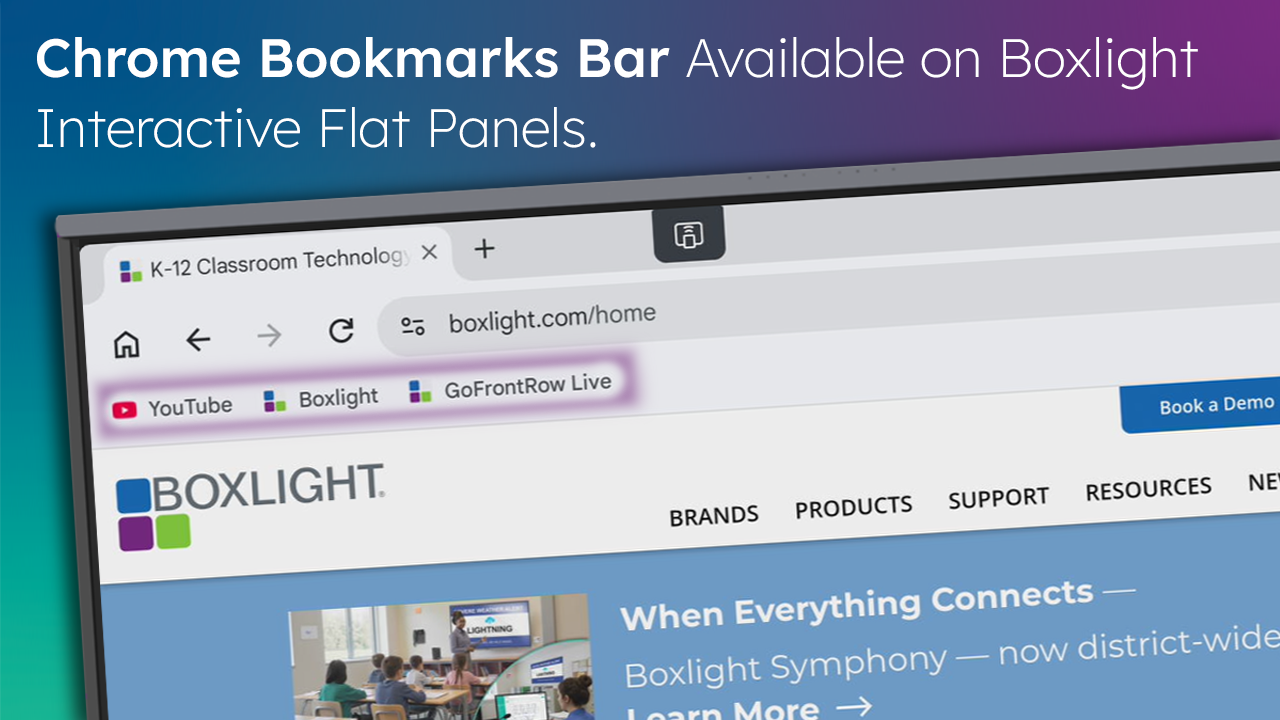
With the latest Chrome update on Boxlight interactive flat panels (IFPs), users can now enable the Chrome Bookmarks Bar directly within the browser experience. This small but impactful enhancement makes it even easier for educators to access frequently used websites, classroom tools, and instructional resources with a single tap.
To take advantage of this feature and ensure the best experience, users should first make sure Chrome is updated to the latest version available on their device.
Why This Matters for Classrooms
For many educators, speed and simplicity are critical during instruction. The ability to keep essential teaching resources readily accessible helps reduce interruptions and keeps lessons moving smoothly.
The Chrome Bookmarks Bar allows teachers to:
- Quickly launch favorite classroom websites
- Access LMS platforms, digital curriculum, and productivity tools faster
- Reduce time spent navigating browser menus
- Create a more familiar desktop-style browsing experience on the display
This has consistently been one of the most requested browser usability features from educators using interactive displays in daily instruction.
Important Setup Requirement
For the Bookmarks Bar to function correctly, Desktop Site must be disabled in Chrome settings.
This feature is part of the mobile version of Chrome running on the display, which behaves differently than Chrome on a traditional laptop or desktop computer. Disabling Desktop Site ensures Chrome operates in its intended mobile mode and allows the Bookmarks Bar experience to appear properly.
How to Enable the Bookmarks Bar
On a Boxlight Pro Series IFP or Lux display:
- Open the Chrome browser
- Select the three-dot menu in the top-right corner
- Confirm Desktop Site is turned off
- Tap Settings
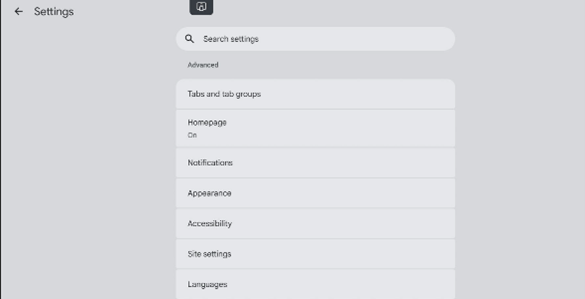
- Navigate to the Advanced Section and select Appearance
- Toggle on Show Bookmarks Bar
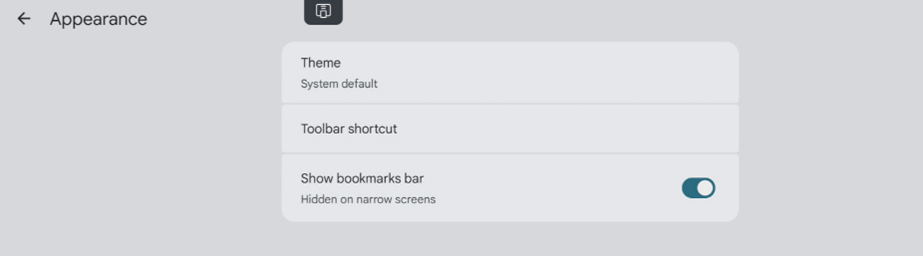
Once enabled, bookmarks will appear directly beneath the address bar for easy access.
Managing Bookmarks
Bookmarks can be edited and moved by selecting Bookmarks in the Chrome settings. From here, users can move bookmarks to different folders, edit bookmark names, and delete anything that is no longer needed.
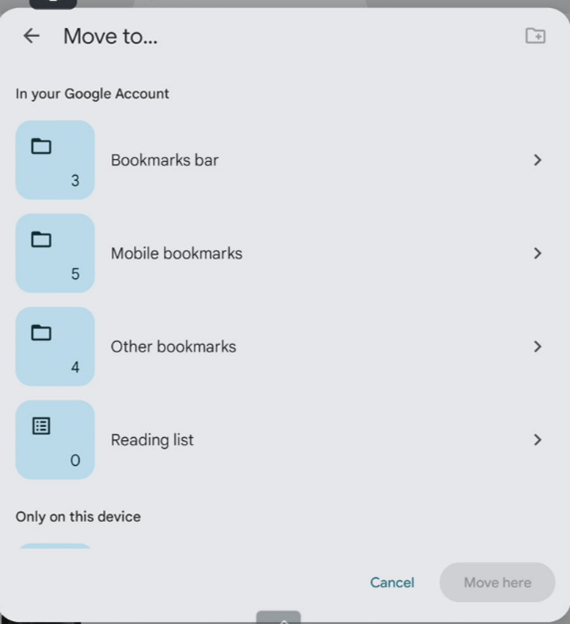
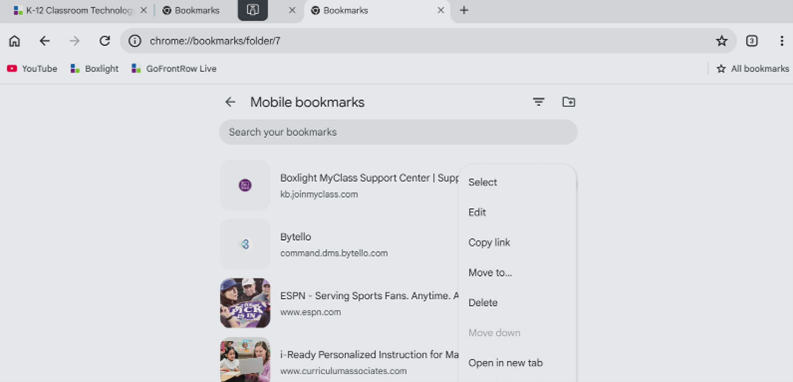
This makes it easier for teachers to organize classroom resources, instructional tools, and frequently used websites in a way that fits their workflow.
Important Notes for Users
Bookmarks created directly on the display will be stored in the Mobile Bookmarks folder.
Additionally, if a user signs into Chrome with their Google account, synced bookmarks from their Chrome profile may also appear on the display. This provides added convenience for teachers who already organize instructional resources within Chrome on their laptops or desktops.
As always, users should be mindful of personal or non-classroom bookmarks that may sync when signed in.
Designed Around Everyday Teaching
At Boxlight, product enhancements are driven by real classroom feedback and everyday educator workflows. Features like the Chrome Bookmarks Bar may seem simple, but they can make a meaningful difference in reducing friction and improving adoption in the classroom.
This update continues Boxlight’s focus on delivering connected, practical technology experiences that support teaching without adding complexity.
For more tips, training resources, and product updates, contact your Boxlight representative or visit the Boxlight Partner Portal.